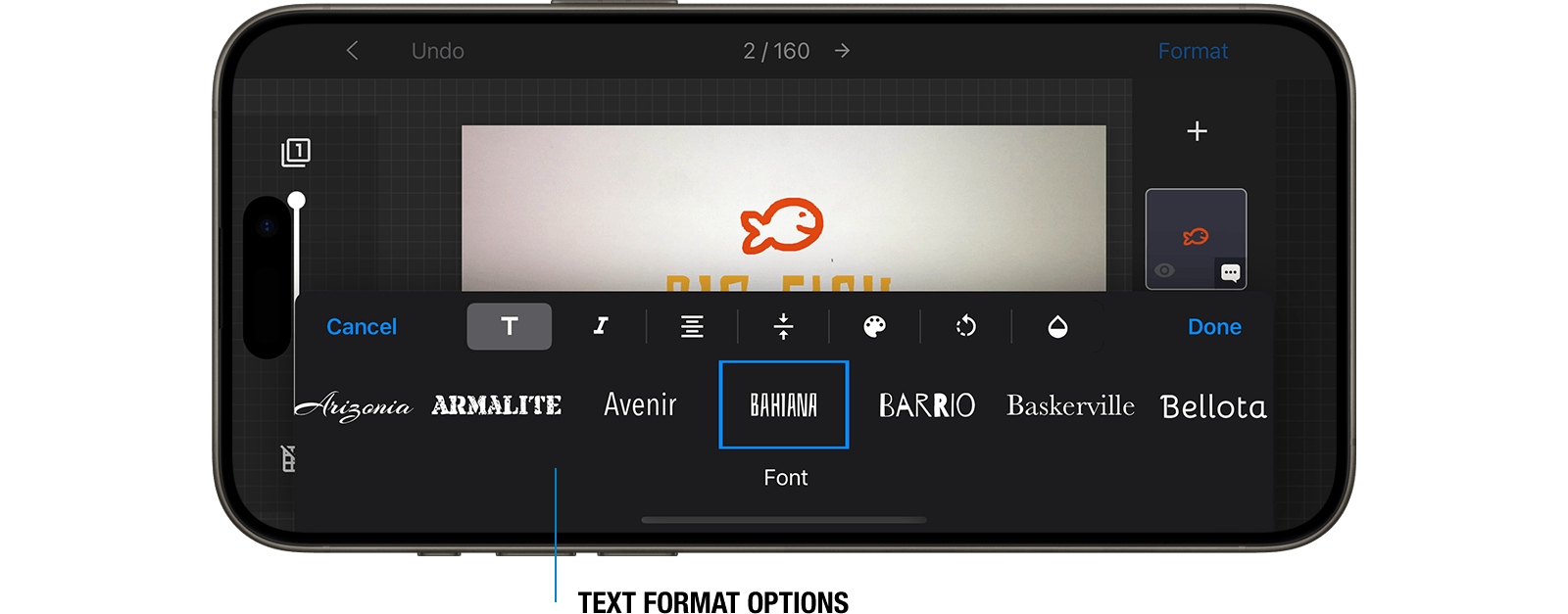
Add Text, Shapes and Images
Adding text to frames in Stop Motion Studio serves multiple purposes, including providing context, conveying dialogue, creating transitions, displaying credits, and adding visual effects. Additionally, incorporating background or foreground images can enhance the overall atmosphere and storytelling of your movie.
- While in the movie editor, select the frame you want to edit and open the frame edit menu.
- Opt for Edit
 to modify the image.
 - Press the Add Layer button
 to open the layer menu.
 - Pick Text
 to add a new text layer. Alternatively, you can select Shape
  for shapes or Background
  for images.
 - For text layers, double-tap or click to edit the text.
- Resize the layer by dragging the handles. On Android, you can adjust size using pinch or pan gestures.
- Select Format for further options to customize font, color, style, or opacity.